
Table of contents
I'm using ZCB version 4.0 or later
I'm using ZCB version 3.0.2 or earlier
ZCB 4.1 installation
Download the Zmanda Cloud Backup 4.1 software from Zmanda Network (Zmanda Network credentials are required).
- Please make sure system requirements such as Java JRE 6 Update 20 or later or JRE 7 are installed. You need to install 32bit version if you are using 32bit Windows and 64bit version of Java if you are using 64bit Windows.
- Run the installer .exe file. It will extract the archive contents and run setup.exe automatically.
- Choose "Yes" when the installer runs and offers the option to upgrade ZCB as shown below.

4. After installation is complete, you can begin using ZCB 4.1. Please refer to ZCB Quick Start guide which is available in the ZCB user interface (Help>Getting Started with ZCB).
5. Zmanda Cloud Backup documentation is available in the ZCB user interface (Help>ZCB User Guide, Help>ZCB FAQ).
Known issues and workarounds
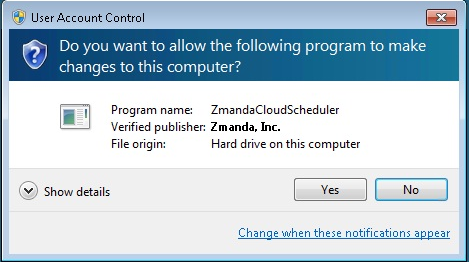
- Windows UAC (User Access Control) in Windows 7 and 2008 Server pop up windows appears when ZCB schedules are added/modified/deleted/read from the UI as shown below. Please click Yes to continue. This happens because ZCB runs with Administrator privileges to interact with Task scheduler.
- When backups are started from ZCB UI (using Backup Now) and the logged in user logs out, the backup fails. Use backup scheduler to perform backup/uploads.
- Pause and Resume of Backup to Cloud is not supported for backup of network mapped drives and application backups. Also, on windows XP, a paused "backup to cloud" operation can't be resumed if the machine has rebooted.
- If you are using data encryption and seeing errors at validation or backup time, please check if your PFX certificate has a friendly name which is different from the certificate name. To check this,
- Open Windows certificate manager from Windows command shell (Run > certmgr.msc)
- Locate your PFX certificate and double click on it. Go to Details tab. If you see a "friendly name" which is different from the certificate name, ZCB won't be able to perform encryption.
To resolve this problem, please get a new PFX certificate using the tools mentioned in the knowledge base article - http://network.zmanda.com/lore/article.php?id=466 .
- After Restore Catalog operation, please verify that ZCB has put the restored backup sets in deactivated state.(ZCB deactivates the backup set so that the user gets the chance to verify the backup set configuration before the backups begin to take place for the backup set).
- If the restore conflict policy is keep original and if you are restoring full and incremental backups and a folder exists in both full and incremental backups, the restore will fail with a warning message
Failed to restore <num> file because they already exist. This warning message can be ignored. The folders will be correctly restored.
-
Pausing backup to cloud on Windows XP, application and system state backups are not supported even though pause button is enabled.
-
To refresh the file system tree in the Backup page, you will have to restart the ZCB UI. The Refresh button is not available for file system backup type in ZCB 4.1.
-
The monitor page reports size of the backup that includes the backup job index and configuration files. The report page does not include the size of backup job index and configuration files.
-
If the name of a file or a folder selected for backup is changed, you will have restart the ZCB UI and save the backup set configuration for the name to be changed in the configuration.
-
If the same network path is mounted as more than one filesystem on a Windows machine and both are selected in Backup What tree selection, ZCB will lose the selections when you switch backup sets. The workaround is to select the network path only once.