
Table of contents
Zmanda Cloud Backup 4.0 is the latest release of Zmanda Cloud Backup product.
Upgrading from Zmanda Cloud Backup releases
ZCB 4.0 Early Access Releases
- If you are running earlier build of 4.0 Early Access release, you must un-install ZCB 4.0. During un-install process, please select yes to preserving configuration and data if you wish to do so. Install the 4.0 early access release by running the installer executable as described in the next section.
ZCB 3.0.2
- Customers can upgrade to the 4.0 release by running the installer executable as shown the next section.
- If you are using ZCB 3.0.2 to backup Oracle or MySQL, do not upgrade to 4.0. These applications are currently not supported in the ZCB 4.0 release. Please contact us at [email protected] for more information.
ZCB 3.0.1
- We strongly recommend upgrading to ZCB 4.0 as we will soon stop supporting release 3.0.1. You can upgrade to 4.0, without disturbing your existing configuration. To do so, please un-install 3.0.1 software and install the 4.0
software by running the installer executable as described in the next section. During un-install process, please select yes to preserving configuration and data.
Installation/Upgrade procedure
Zmanda Cloud Backup will not install on machines running Amanda Enterprise
Windows Client or Zmanda Recovery Manager (ZRM) Windows client.
- Download the Zmanda Cloud Backup 4.0 software from Zmanda Network (Zmanda Network credentials are required).
- Please make sure system requirements such as Java 6 Update 16 or later must be installed for Windows platforms other than Windows 7 and Java JRE 6 Update 20 for Windows 7 must be installed. You need to install 32bit version if you are using 32bit Windows and 64bit version of Java if you are using 64bit Windows.
- Run the installer .exe file. It will extract the archive contents and run setup.exe automatically.
- If you are running previous version of ZCB, you will prompted about preserving old configuration. Please answer Yes if you would like to use the backup set configuration, reports and restore from old backups.
- Download Zmanda Cloud Backup Certificate available in the Zmanda Network under Downloads tab. Download the file to the ZCB machine and Import the file into the configuration using ZCB UI (Cloud>Import Cloud Certificate).
- To begin using ZCB 4.0, please refer to ZCB Quick Start guide which is available in the ZCB UI (Help>Getting Started with ZCB)
- The Zmanda Cloud Backup documentation is available in the ZCB UI (Help>ZCB User Guide, Help>ZCB FAQ).
Product Changes
Zmanda Cloud Backup 4.0 includes significant improvements in functionality, performance and usability. There are numerous bug fixes in this release (bug fixes are not listed).
Functionality
- Selective backup of MS-SQL and MS Exchange Server
- Differential backup of MS SharePoint
- Backup to cloud now backs up to cloud directly, without using any local disk storage. The earlier functionality (of backing up to local disk as well as cloud) is still available under the name Backup to both disk and cloud.
- Pause/Resume of a Backup to cloud operation
- Support for custom Pre-Restore and Post-Restore actions
- Improved retention policy implementation to allow better backup data protection
- Support for Amazon S3 – Tokyo Region
Usability
- A new GUI with usability improvements
- Backup set configuration in one page
- Parallel uploads and downloads within a backup set
- Configure number of threads for upload/download
- Flexible scheduling options
- User friendly email notification functionality
- Monitoring and Reporting across backup sets
Performance
- Significantly faster downloads and uploads (upto 3 times faster) allowing user to better utilize available server network bandwidth and internet bandwidth
- Parallel backup, restore, validate and estimate operations across backup sets
Localization
- Japanese support
- German support
Known issues and workarounds
- If you are using ZCB to backup Oracle or MySQL databases, do not upgrade to 4.0. These applications are currently not supported in the ZCB 4.0 release. Please continue to use ZCB 3.0.x release. Please contact us at [email protected] for more information.
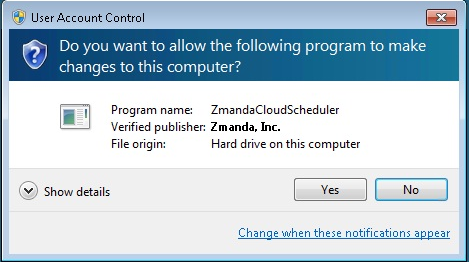
- Windows UAC (User Access Control) in Windows 7 and 2008 Server pop up windows appears when ZCB schedules are added/modified/deleted/read from the UI as shown below. Please click Yes to continue. This happens because ZCB runs with Administrator privileges to interact with Task scheduler.
- When backups are started from ZCB UI (using Backup Now) and the logged in user logs out, the backup fails. Use backup scheduler to perform backup/uploads.
- Pause and Resume of Backup to Cloud is not supported for backup of network mapped drives. Also, on windows XP, a paused "backup to cloud" operation can't be restarted after machine reboot.
- If you are using data encryption and seeing errors at validation or backup time, please check if your PFX certificate has a friendly name which is different from the certificate name. To check this,
- Open Windows certificate manager from Windows command shell (Run > certmgr.msc)
- Locate your PFX certificate and double click on it. Go to Details tab. If you see a "friendly name" which is different from the certificate name, ZCB won't be able to perform encryption.
To resolve this problem, please get a new PFX certificate using the tools mentioned in the knowledge base article - http://network.zmanda.com/lore/article.php?id=466 .
- If the restore page is not showing selected backup set information, please try switching backup sets. Sometimes, the restore page is not refreshed automatically.
- If the file list in the restore page displays incorrect number of page count (it might display Page 1 of 1), switch backup sets or tabs. This will refresh the restore page and page numbers in the file list will be recalculated.
- After Restore Catalog operation, the backup sets that have been restored are in activated state. It is important to verify the backup set configuration. If the configuration is not correct for the machine where catalog restoration was performed, please deactivate the backup set.
- If the restore conflict policy is keep original and if you are restoring full and incremental backups and a folder exists in both full and incremental backups, the restore will fail with a warning message
Failed to restore <num> file because they already exist. This warning message can be ignored. The folders will be correctly restored.