
Table of contents
- 1. About Backup Sets
- 1.1. What a Backup Set Contains
- 1.2. Create/Open a Backup Set
- 1.2.1.1. Templates
- 1.2.1.2. Backup Set Owners and Permissions
- 1.2.1.3. Backup Set Name
- 1.2.1.4. Comments
- 1.2.1.5. Go Button
- 1.2.2. Open an existing backup set
- 1.2.2.1. Go Button
About Backup Sets
The backup set is a grouping mechanism that simplifies and optimizes backing up many systems with different backup requirements. It lets an administrator define a set of backup policies (what, how, where and when) to different backup runs.
All ZMC actions (backup, restore, reporting, and monitoring) are performed in the context of backup sets.
Backup sets cannot share target media volumes. For example, two backup sets can use the same tape changer simultaneously, but each should have a separate set of slots.
Multiple backup sets are useful for protecting a large number of systems with different backup requirements, but many organizations with less complex backup requirements can define a single backup set to meet their needs. For example, on a network that includes servers with high rate of data change along with desktop systems that change more slowly, you would probably want to create one backup set for the servers, and another backup set for the desktops.
What a Backup Set Contains
A backup set is a uniquely-named record of backup policies, including:
- hosts, directories, and files to exclude.
- the backup target, which can be a tape device or disk (via holding disk or virtual tape)
- the type of backup to perform (full or incremental); schedules are automatically configured by Amanda.
Amanda ensures that two backup sets do not write to the same tape (or to the same directory if disk media is used for backup). Amanda also enforces that it does not accidentally overwrite a tape/disk belonging to another backup set.
Create/Open a Backup Set
- The Begin Button on the Welcome page opens the Create/Open a Backup Set page.
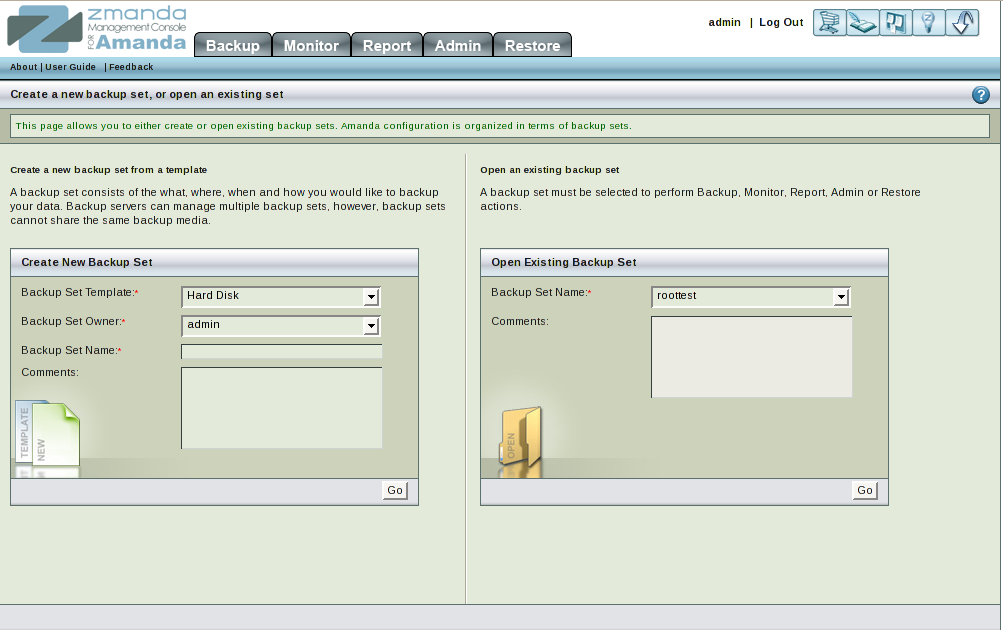
This page is divided into two panels.
- The left panel (No.1 above) allows users to create a new Backup set. A new backup set can be based on a template, or you can fill in all the parameters manually.
- The right panel (No.2 above) allows users to open and edit an existing backup set.
Templates
ZMC has provided a number of templates to speed backup set creation.
To create a new backup set from a template choose any of the options in the drop down box. The templates currently available are:
- harddisk (for using disk media as a backup target)
- single-tape (for using a single-drive tape device as a backup target)
- tape-changer (for using a multi-drive tape autochanger as a backup target)
- Amazon S3 (for using Amazon S3 as a backup target). To use the template, you must purchase Zmanda Internet Backup product.
Backup Set Owners and Permissions
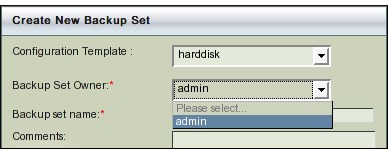
ZMC implements a Role Based Access Control system. The owner of a backup set has full rights to edit and delete it. Aside from the Administrator (who has global privileges to modify any backup set), no one else may alter a backup set but its owner.
As users are added to ZMC (via Admin.->User Management Tab), their names are added to the drop down list upon the next ZMC login.
Backup Set Name
Provide a meaningful, unique name for the new backup set.
Comments
Comments (Input box No. 4 in Fig. 2 above) play no active role in the backup process. They are intended as a reference to help you identify the parameters of this backup set. Many users enter the key parameters of the tape system here.
Go Button
Both Left and Right panels on the page contain a Go button. This will open the Backup What page and enable the ZMC tabs. After clicking Go, the Change Backup Set drop down box is shown at the top of each page, allowing you to jump to the settings of any existing backup set. Users can switch to any existing backup set using the box.
Important Note: Backup sets created using Tape Changer, Single tape, or Amazon S3 templates require at least 1 GB of free disk space available on the Amanda user's home directory file system (typically /var/lib/amanda). Failure to ensure adequate disk space will result in the holding disk directory not being created. Users must then manually create the directory using the mkdir command.
Open an existing backup set
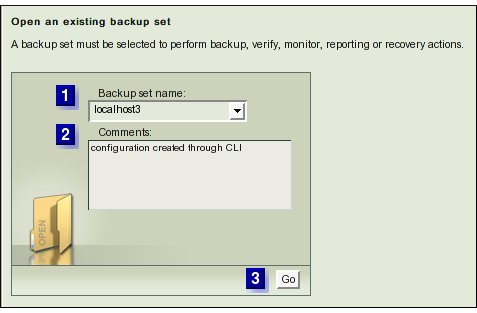
- The right panel opens an existing backup set.
Go Button
Clicking the Go button opens the Backup What page and enables the ZMC tabs. After clicking Go a Change Backup Set drop down box will be visible at the top of each page, allowing you to jump to the settings of any existing backup set. Users can switch to any existing backup set using the box.