
Table of contents
- 1. Backup When Page Main Functionality
- 2. Backup Now Panel
- 2.1. Backup Now Drop Down Box
- 2.2. Backup Button
- 3. Backup Schedule Panel
- 3.1. View Schedules
- 3.2. Backup Level
- 3.3. Time Range
- 3.4. Backup Time
- 3.5. Add Schedule Button
- 3.6. Modify Button
- 3.7. Delete Button
- 3.7.1.1. Views
- 3.7.1.2. Personal tools
- 3.7.1.3. Navigation
- 3.7.1.4. Search
- 3.7.1.5. Toolbox
ZMC provides users all the tools to create a detailed backup schedule balancing the requirements to backup data frequently with the impact on performance.
- Storage space is required.
- Because recovery is from a disk based source, it is always convenient.
- The Backup When page has two panels (No. 1 and No. 2 above) that provide for creating backups immediately or schedule the backups.
[edit]
Backup When Page Main Functionality
The main functionality of the Backup When page are to allow the users to :
- Make immediate backups.
- Specify the schedule for which the backups will be run.
- Specify the overall backup cycle time as well as the days/dates within the backup cycle on which the backup will run.
- Users also specify the time at which the backup run will begin.
[edit]
Backup Now Panel

[edit]
Backup Now Drop Down Box
- Users can select from the Backup Now drop down Box (No. 1 above) either to make a Full Backup (default) or choose to make an incremental backup.
[edit]
Backup Button
- Click the Backup Now button (No. 2 above) to initiate the Backup process immediately.
- If some parameters have not been fully pre-specified appropriate error message will appear in the message window on the page.
[edit]
Backup Schedule Panel

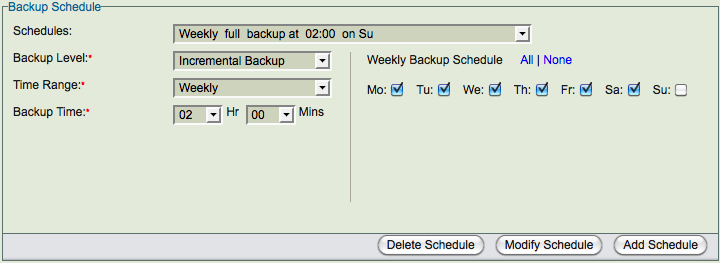
- The Backup Schedule panel has five major components (numbered 1 to 5 above).
- It also has three buttons (numbered 6 to 8 above).
- Note that when not even one Backup Schedule has been specified for a Backup Set, then only Add Schedule Button (No. 6 above) will be visible in the panel.
[edit]
View Schedules

- ZMC gives users the full flexibility to specify any number of full and incremental backup schedules for a backup set.
- The existing schedules can be seen by clicking the View Schedules drop down box (No. 1 above) as in the Fig. 4 above.
- While substantial specifications of the schedule can be seen from the drop down box, selecting a schedule will display all its details in the panel.
[edit]
Backup Level

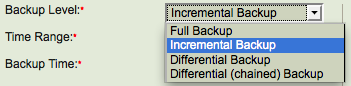
- Backup Level drop down box (No. 2 above) allow users to select the level of Backup i.e. Full or Incremental.
[edit]
Time Range

- Time Range drop down box (No. 3 above) allow users to select between daily, weekly and monthly schedules.
- When a weekly time range has been selected, the GUI shows the Backup Week at No. 5 in fig. 1 above.
- When a monthly time range has been selected, the GUI shows monthly ime range as below.

- Tip
- There will be times when users will want to schedule daily/hourly incremental backups of certain tables/ databases. This is possible within the existing GUI. For example users want to schedule an incremental backup every two hours during the working hours and one full backup at 12 midnight. Specify 9 Incremental backup schedules every two hours apart starting from 6 A.M. and going upto 10 P.M. Specify a Full backup at 12 P.M. Modify this example to suit your requirements.
[edit]
Backup Time

- Backup Time input box (No. 4 above) allow users to specify the time of day when the backup run starts.
- ZMC follows a twenty four clock with mid-night being 00:00 hours and 1 P.M. in afternoon being 13:00 hours.
- Hours can be integer values between 0 to 23 while minutes can be integer values between 0 to 59.
- This time is the same for all days/dates within a schedule.
- To specify different start time for different days/dates, make separate schedules for the same Backup Set.
[edit]
Add Schedule Button

- When no schedule exists for a Backup Set, only the Add schedule Button(No. 6 above) is visible.
- The Add Schedule Button (No. 6 above) allows users to save the schedule specified to the existing schedules as an additional schedule.
- ZMC does not check if there is any overlap between the existing schedule and the new schedule that is being saved. Therefore it is possible to specify in two schedules that Full Backup should take place on Monday nights at 12 P.M.
- In practice ZMC will run just one Full Backup at that time.
- ZMC does check that two identical schedules cannot be saved. It responds with a message in the message window that'Specified entry exists in the list of scheduled entries. Not adding it again.'
[edit]
Modify Button
- The Modify Button (No. 7 above) allows users to save the modifications to an existing schedule.
- While saving, ZMC does not check, if in fact, users have made any modifications or not to the existing schedule.
- It simply saves the parameters that are specified in the GUI and responds with a message in the message window that 'Scheduling parameters have been updated for this backup set.'
- ZMC does check for correctness of the parameters will point out errors in the message window.
[edit]
Delete Button
- The Delete Button (No. 8 above) allows users to delete any existing schedule.
- There is no undo button so users should exercise care before clicking the button.
- There is no restriction on creating a fresh schedule that is identical to a deleted schedule.
Personal tools
