
Table of contents
The Data Integrity page provides a tool to query and confirm that the backed up data has not been altered since it was backed up. Verifying the integrety of data is important when you move a backup image from the hard disk to save space, and then move it back online in preparation for restoring it. In all circumstances, verifying the backup image is recommended before restoring databases from it.
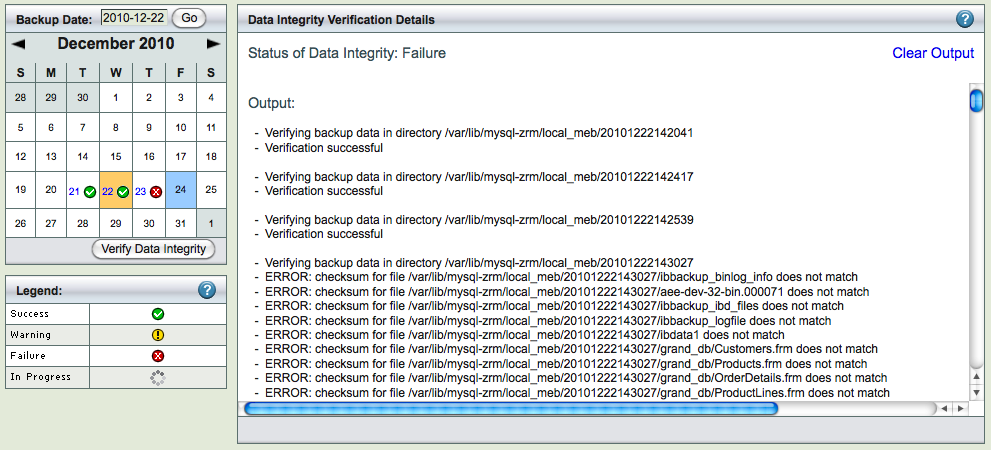
Data Integrity Page Overview
The Data Integrity page is divided into two panels:

- The left panel contains a Calender Control that allows Users to navigate to the Backup Date when the backup took place.
- Against dates on which the backup had taken place, a legend is displayed.
- The right panel displays status and results of the verification process.
Selecting a Backup by Date

You can either enter the date (mm/dd/yy[yy]) and click Go, or click on any icon in the calendar. When you click Verify Data Integrity, the verification process begins.
A detailed explanation of how the Calender Control works is here.
Note that Quick Snapshot backups involve no data transfer, and therefore cannot be verified.
Verify Data Integrity Button
Clicking the Verify Data Integrity button starts the verification process. Status is displayed as described below.
Monitoring the Verification (Right Panel)
After you click the Verify Data Integrity button, the right panel shows the progress and result of the verification.
Status
When you open the page, the Status panel displays a message 'No Task launched' until you click the Verify Data Integrity button. The message changes to Running after you click Verify Data Integrity. The verification process assumes that the backed up data is present in the same directory where it was originally backed up. If the data is not present, the verification fails. Attempting to verify a quick (no copy) snapshot backupw will also result in a failure, as these types of backups involve no data transfer.
Clear Output
When the result is displayed, a link is displayed in the upper right corner of the status panel. Clicking this link clears both panels of the previous result. The last verification status is displayed until you clear it.