
Table of contents
The Database Events page lets you find and view all the database events logged and copied during incremental backups. This is useful when you need to find a particular malicious or erroneous transaction so you can roll back the unintended change. Once you find the problem event, you can easily launch a restore operation that will roll back all changes to the moment before the damage occurred. To back up and restore at the transaction level requires that binary logging is enabled on the MySQL server.
- Selective restores
- It is possible to restore selected events or undo selective events from the database. You can also search for errors and save the search query for future searches. This will make identification of erroneous events easier.
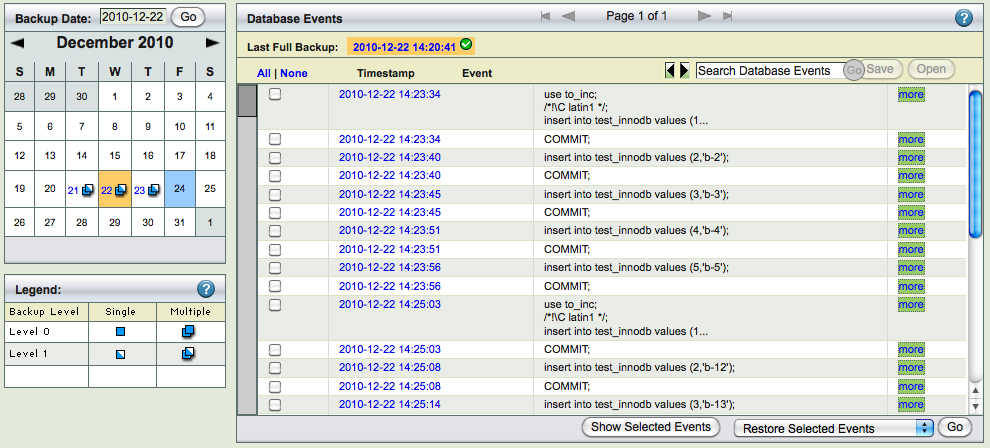
The left panel displays a calender control that lets you select a backup icon from dates on which single or multiple backups where processed.
The right panel features controls that help you locate events within the selected backup. When you open the page, the right panel displays events from the selected backup date for the selected backup set. If there is no incremental backup, no data is displayed. Binary logs are stored as part of incremental backups.
Choosing a Backup Date


There two methods for selecting a backup:
- You can click a backup icon on the calendar.
- You can enter the backup date (mm/dd/yy[yy]) at the top of the left panel and click Go to select a backup date.
The calendar shows the dates on which full backup (level 0) and incremental backups (level 1) were performed. If the multiple backup runs happened on a calendar day, it is shown with a different icon. You can select any date that has one or more incremental backups.
The incremental backups are parsed and displayed in the database events window. When user selects a backup date, the incremental backups done on that date are parsed. It is important to select the backup date again (select another date in the calendar and then select the date you want) to parse incremental backups done after the initial backup data selection. Page reload will not cause incremental backups to be parsed.
Note: If no incremental backup exists for the selected date, then no data is displayed. This does not necessarily mean that event logs do not exist for that date; they may be available from a binary log that was backed up subsequently. In other words, the Database Events log includes all data from a given backup to the next backup that included logged events.
Database Event Viewer
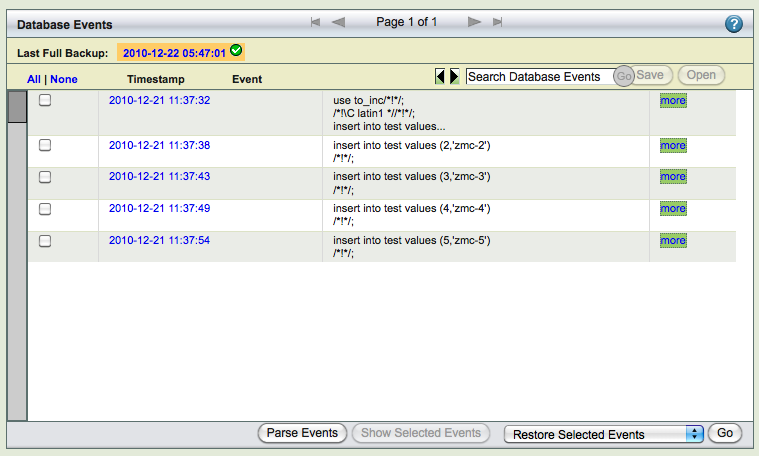
After you have selected a backup that includes log data, the events viewer lists the events it contains in a summary list. You can click on the more link to get complete description of the event as shown below.

Database Event Search

You can enter a text string to search for specific database events. You can use MySQL fulltext search Boolean operators to further control the search. For example, you can quote entire phrases to find them, and use plus (+) operator to refine searches on individual words. Some common examples follow:
- "Star Wars"
- find events that include the phrase "Star Wars"
- Star+Wars
- find events that include the word "Star" and "Wars" (not necessarily together).
- table:table name
- find all table table name events. For example: table:employees
- database:database name
- find all databases database events. For example : database:expenses
- sql:sql verb
- find all sql command occurrences. For example: sql:delete
You can also do a combination of above operators/key words. For example: table:table_name + sql:insert + database:dbname This will find the all insert SQL statements for the table in the database.
All the search results are selected. The search results are also highlighted. It is possible to use the left and right arrow buttons next to the search box to go from one search result to another.
Search queries can be named and saved for future searches (Use Save button next to the search box). Clicking Open button next to the search box to use saved search queries. Saving search queries can help in performing the same queries on multiple backup sets or multiple backup dates. Following figure shows the dialog that is displayed when Open button is clicked. Users can open a saved search for searching and delete a saved search in this dialog window.

Launching Restores from the Database Events Browser

After selecting the event(s) using the checkbox next to each event, you can restore to a selected event (of course, only one event should be selected) or restore only the selected events or restore everything except the selected event (undo selected events). Multiple events can be selected for restoration or undo the effects of the selected events. Restoring to a selected event is equivalent of point-in-time recovery i.e, all database events starting from last full backup to the specified event are restored.

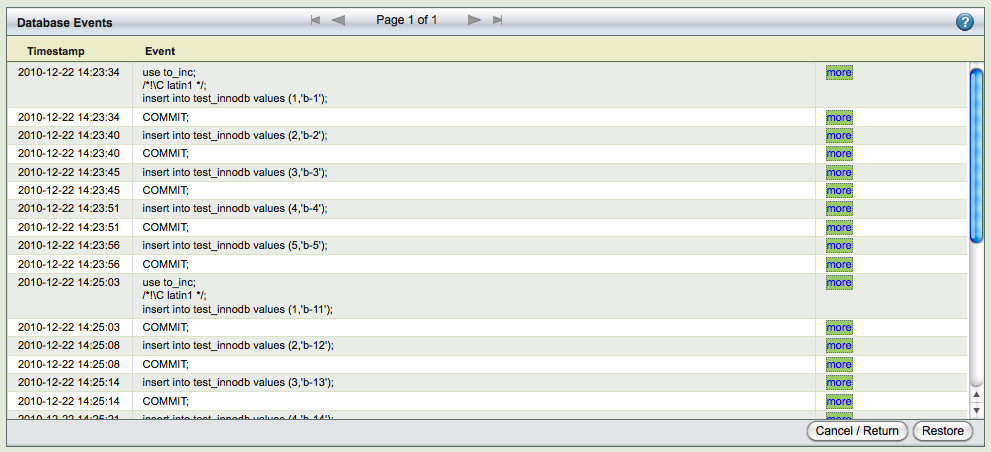
"Show selected events" shows all the selected events in one page as shown above. This can be used to review selected events and confirm the restoration process. Clicking "Go" in the Database event browser or "Restore" in the selected events page takes you to Restore|What page to continue with restoration process.
Selective restores should be performed carefully. Otherwise, there can be restoration failures or data loss. Few important points that user must be aware of:
- ZRM does not have capability of verifying if the selected events for restoration or the undo operation makes sense from the database or the database application. It is up to the user confirm that the restoration of events will keep the database consistent from application point of view and there will be loss of data.
- While performing selective restore, database constraints should be met after selective restoration. Selective restore can fail due to database constraints.
- The mysql user used for restoration (defined in Backup|What page) should have privileges to perform the selected events being restored. The privileges should be granted to the user before attempting restoration.
- Selective restoration depends on the time to be in sync between the ZRM server and MySQL server in case of remote MySQL servers. Otherwise, correct events may not be restored.