
Table of contents
- 1. Monitoring Backups
- 2. Backup Run Summary Panel
- 2.1. Status
- 3. Backup Run Details
- 3.1. Phase
- 3.2. Time Taken
- 3.3. Messages
Monitoring Backups
The Monitor page shows the progress of backup run. The Backup run goes through various phases. Each phase is displayed and time taken by each phase is displayed when it is completed. It is possible to abort a backup run when it is absolutely necessary. The backup will stop at the next appropriate time (most likely at the beginning of the next phase). The cancel button will appear during the backup run. The client process are not terminated and will have to be terminated manually.
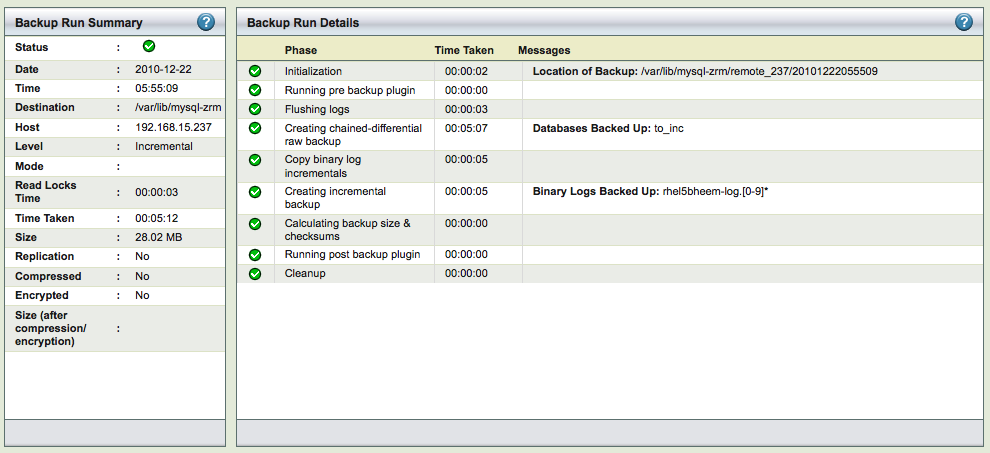
The Monitor page is divided into two panels.
- The left panel (No. 1 above) shows a statistical view of backup processes.
- The right panel (No. 2 above) displays a step-by-step view of processes.
Backup Run Summary Panel

The Backup Run Summary panel shows a status icon (explained below), followed by the parameters in effect for the backup set.
Status

Both the panels use these symbols to indicate the status of the backup:
- The yellow exclamation point (!) indicates an informational message.
- The green checkmark symbol indicates a task that executed successfully.
- The red octagon ("stop sign") symbol indicates the process stopped with fatal errors.
Backup Run Details

Backup Run Details shows step-by-step how the previous and current backup runs progressed.
Phase

Phase information in the first column contains a symbol and the name of the process that has executed.
Time Taken

The second column (Time Taken) shows the duration of each process, displayed in hh:mm:ss format
Messages