
Table of contents
Restore Where
- The main functionality of the Restore Where page is to allow users to select where the data is to be restored.
- It also allows users to pre-resolve potential conflicts in restoring data. For example over-writing an existing file that may already exist at the proposed location.
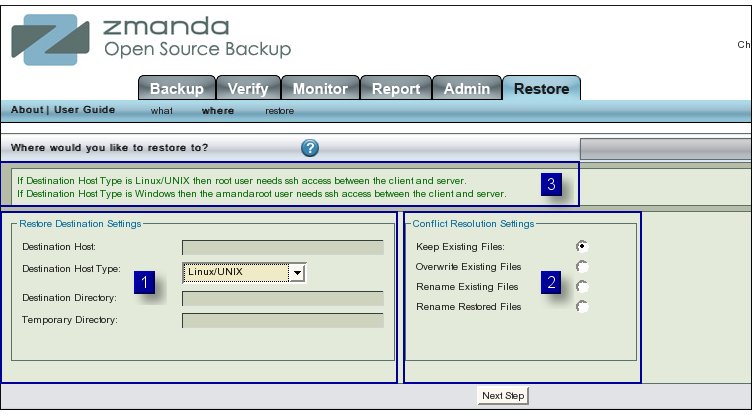
"Restore Destination" Settings
- The Restore Destination Settings panel (left panel No 1 above) seeks four initial parameters about the data that users are trying to restore.
- Destination Host.
- Destination Host Type.
- Destination Directory.
- Client Temporary Directory.
Destination Host
- The Destination Host is the host where you want to store the restored data.
- It can be the same host as from which the data had been backed up.
- If Destination Host is left blank, then ZMC assumes the default value "Amanda server" i.e. the host on which ZMC is installed.
- The Destination Host should have ssh running on it and grant ssh access to the appropriate user (as explained in Destination Host Type below).
WARNING:
If the User does not have ssh permission between the server and client where restore is to be done, he will get an error message like

ssh connection to mymachine.zmanda.com refused
- Please correct the configuration to give proper access rights to the user.
Destination Host Type
- The drop down box allows users to chose between 'Linux/Unix' or 'Windows' types .
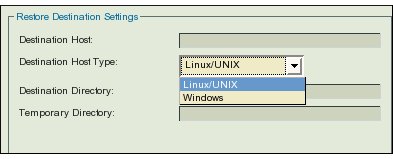
- If the Destination Host is running Linux , then the data will be restored as user root.
- If the Destination Host is running Windows , then the data will be restored as user amandaroot and not amandabackup.
- The Message box at No 3 above pre-displays a message about using different users as ssh rights will be with those users.
Destination Directory
- Destination Directory is on the Destination Host.
- It is the directory on which ZMC can make available the restored files for examination.
- If Destination Directory is left blank, an error is thrown till users specify a destination directory.
WARNING:
Destination Directory MUST be specified by an absolute path.
Client Temporary Directory
- Client Temporary Directory is like a scratch pad on the Destination Host that ZMC uses to hold temporary files while it is doing the restore.
- It is not available to Users.
Conflict Resolution
- The right hand Conflict Resolution Panel ( No2) allows users to chose one among the four options.
- The first option "Keep Existing Files" will not overwrite the existing files with the restored files in case of a conflict. The restored files that are conflicting will be discarded.
- The second option "Overwrite Existing Files" on the other hand will overwrite the existing files by the restored files if there is a conflict.
- If the third option "Rename Existing Files" is selected, and there is a conflict, then the conflicting existing files will be renamed to "original_filename.original.timestamp". This will clearly distinguish the existing file from the restored file.
- The fourth option "Rename Restored Files" will on the other hand rename the restored file if a file by that name is already existing. The restored file will be renamed to "restored_filename.restored.timestamp".
In all the 4 options above, the non-conflicting files will NOT be affected.
- NEXT STEP
- Clicking the 'Next Step' Button at the bottom takes users to Restore Restore page.