
Table of contents
- 1. Backup What
- 1.1. Backup What Page Overview
- 1.2. New Edit Duplicate Delete Buttons
- 1.2.1. New and Edit Buttons
- 1.2.2. Duplicate Button
- 1.2.3. Delete Button
- 1.3. Host and Directory Names
- 1.4. Exclude Files
- 1.5. Encryption and Compression
- 1.5.1. Compress files
- 1.5.2. Encrypt files
- 1.6. Host Type
- 1.7. Fresh Pages from New or Edit Buttons
- 1.8. New Button - BackupWhat Edit Page
- 1.8.1. Object to Backup Box
- 1.8.2. Backup Method Box
- 1.8.3. Add/ Clear/ Done Buttons
- 1.9. Edit Button
- 1.10. Next Steps
- 1.11. Links to Zmanda Knowledge Base
Backup What
The Backup What page specifies what is to be backed up: what clients, and what directories on each client. ZMC can back up the whole network or a portion thereof, all from one central server.
To organize the backup in an efficient manner, ZMC devides the Enterprise into backup sets, and sub-divides each backup set into Host/Directory pairs called Disk List Entries (DLEs). The DLEs can also specify directories and files to be excluded from the backup. Encryption and compression options can also be applied at the DLE level.
Backup What Page Overview
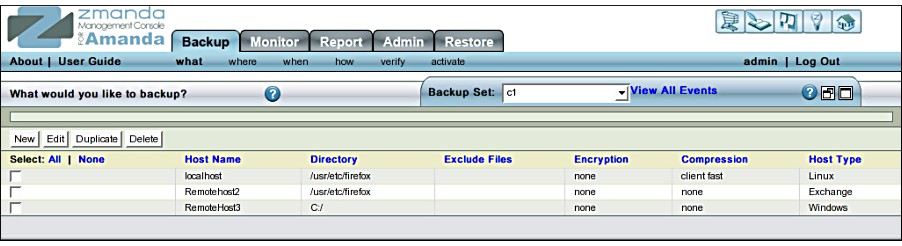 The Backup What page shows different options and controls depending on context. By default it shows the above GUI. Options are described below.
- New/Edit/Duplicate/Delete Options
- Create, Duplicate, Edit, or Delete a Disk List Entry, which is defined by the fields described below.
- Host Name
- Specify or select a host name to back up.
- Directory
- Specify a directory on the currently selected host to back up. Unless excluded (see below), all directories/files below this directory are recursively included in the backup.
- Exclude Files
- Lists Files to be excluded from the Backup. Regular expressions are allowed to specify multiple files and paths.
- Encryption & Compression Options
- Lists Encryption and Compression choices.
- Host Type
- Host Type can be one of these two types:
- Linux
- Windows Client
New Edit Duplicate Delete Buttons
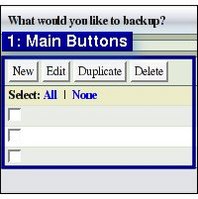
- New Edit Duplicate Delete Buttons:
New and Edit Buttons
The New or Edit button opens the BackupWhatEdit page, where you can enter or change backup source parameters. These are discussed in detail below.
Duplicate Button
When you click the Duplicate button, for each box that has been checked, a duplicate entry is added to the list with _copy appended to the host name.
Note: This does not create a Duplicate backup set; it creates a duplicate Disk List Entry that must be edited to point to the correct host/path. Duplicate is useful for naming hosts using patterns such as ABC1, ABC2, ABC3 etc. It is also useful for specifying different exclude files and Encryption/Compression options on the same host.
Delete Button
Check the entry you want to delete, then click the Delete Button. The checked entry is silently deleted. Be careful; there are no warnings, and no way to undo the delete.
Host and Directory Names
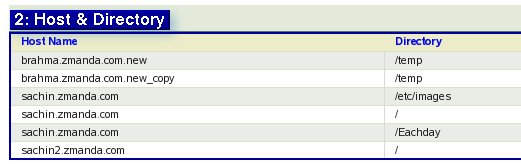 Host Names can include Alphanumeric characters, and two special characters, the period '.' or the dash '-'. The special characters must enclosed between the Alphanumeric characters.
When the Duplicate Button is clicked, the duplicate Host Name has the string '_copy' attached to it. This name is not valid, and must be edited to be a valid name.
There can be multiple Disk List Entries with the same Host Name. However the combination of Host Name and Directory must be unique.
Directory Names must follow the naming conventions of the host.
All sub-directories and their content will be backed up recursively when any directory is specified.
Warning:Host Names and Directory names are case sensitive. For a successful backup, the Host name must correspond to a DNS entry that the backup set will find on the ZMC server. The Directory name must correspond to a directory on the particular host. The Directory path must be an absolute path and not a relative one; otherwise, it will not be backed up. Presently, there is a limit of 128 characters on the length of Directory name.
TIP 1: Use a fully qualified host name while entering the name of the local host as a client. If not, ZMC will give a warning at the time of running the Verify Client check.
TIP 2: When Tape is the Backup Media, carefully consider using multiple top level Directory entries for the same host. Multiple top level Directory entries may result in a lower restore time, if users are seeking to restore individual files within those Directories.
Tip 3: Having Multiple Host/Directory combinations with different exclude lists and Encryption and Compression options optimizes Backup and Recovery.
Exclude Files
Specifying Exclude Files optimizes the performance of the Backup set. 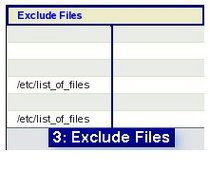 If you specify a Host name and the root directory, ZMC backsup everything on that server.
ZMC uses the GNU-tar utility which supports exclude lists. ZMC allows users to specify only one wild card expression, or the path to a single exclude file per Disk List Entry.
Some simple examples:
- To exclude any file or directory that ends in ".log" e.g. ppp.log, and Xfree86.0.log, specify *.log
- To exclude any file or directory with the string "log" e.g. logfile, maillog, syslog, and ppp.log,XFree86.0.log, specify *log*
- To exclude any file or directory that starts with string "cron" and ends in ".gz" e.g. cron.1.gz, cron.2.gz, and log/cron.1.gz, specify *cron*.gz
- The question mark can be used to specify a single character. e.g. to exclude log.1 and log.2, specify log.?
- When an exclude list file is to be used it should reside on the client-host to which it refers. Hence the path to the exclude list must be in reference to it.
- The exclude list file can be named anything that pleases users and can be created with any text editor.
- It should have only one exclusion entry per line.
Advantages of exclude files option
There are a number of different reasons for using the exclude file option.
- You do not want the excluded data to be part of any backup set. Such data tends to be quite small in quantity and does not save much.
- You want to exclude the data from Compression or Encryption options, saving CPU cycles, network bandwidth, and total time to run backups.
- Lastly, if the data on the host is organized in such a manner that implementing multiple top level directories in different disk lists makes no sense, exclude lists may allow users to organize the backup with possibility of faster restore for some files. The files would be excluded from the general backup and kept in separate DLE(s).
Encryption and Compression
- Encryption and Compression Choice
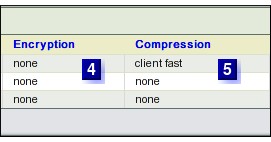 The BackupWhatEdit page reached by clicking the New or Edit button has options to set Encryption and Compression performed on DLE.
Compress files
ZMC compresses the data on the Client, resulting in more efficient use of bandwidth when the backup image is sent to the server. ZMC supports compression using gzip, which creates archives that can be extracted almost universally.
Many Tape drives have built-in hardware compression. There are many advantages in allowing such hardware to handle the compression task.
TIP:Anticipate difficulties of uncompressing backed up data when a device that uses proprietary compression algorithm fails. Users may also face difficulties when that device is no longer in use/usable. For images and other pre-compressed files, do not waste Backup time trying to uselessly compress them.
Encrypt files
Usually backed up data is not guarded with as much care as live data is. Encrypting such data adds a layer of protection against misuse. ZMC encrypts the data on the server, using amcryptsimple encryption. Encryption passphrases are stored in amandabackup user directory on the server.
Note: Encryption is a CPU intensive task. Enable it with care.
Host Type
- Box 6 displays the Host Type.
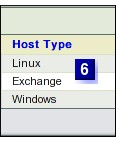
- Host Type can be one of these three types:
- Linux
- Windows Client
- This choice is to be made on the Backup What Edit page and will be discussed in detail there.
Fresh Pages from New or Edit Buttons
- This section discusses in detail the New and Edit buttons.
New Button - BackupWhat Edit Page
Clicking the New Button lets you create new Disk List Entries.
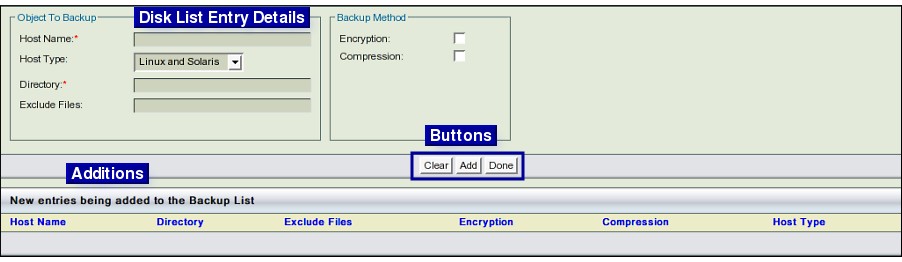
Clicking the Done button saves the entry and displays the Backup What page including the newly created DLEs. The DLE parameters are described below:
Object to Backup Box
- Host Name
- Reqired. Enter a hostname from your local domain that contains data you want to back up. If referring to the local host (i.e., the backup server itself), use the Fully Qualified Domain Name of that server.
- Host Type
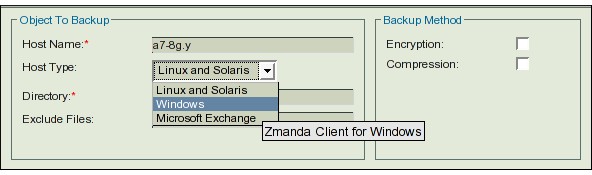
- As can be seen above, Host Type can be one of these two types:
- Linux and Solaris means either a Unix host, a Linux host, or a Solaris Host. In the main BackupWhat page, this is shortened to read as Linux under the Host Type column.
- Windows Client means hosts running:
- Windows XP Pro (Service Pack 2) running on the x86 platform
- Windows 2003 server running on the x86 platform
- Other servers running operating systems such as NT, Vista or 9x etc should be typed as Linux and Solaris and backed up using the Cygwin client.
- When a Host is running a Windows OS that is not supported by the Windows Client software, or if the User does not want to opt for the Windows Client Software, then it should be specified as Linux and Solaris.
- Directory Name
- Reqired. Note that there can be multiple Disk List Entries with the same Host Name. However, the combination of Host Name and Directory Name must be unique.
- Directory Names must follow the naming conventions of the host.
- Recursively, all sub-directories and their content will be backed up when a directory is specified.
- When backing up a Windows Client, the Directory name need not follow any special requirement. For the backup to happen, the Windows Client software must be installed on that host.
- When backing up a Windows server that has Cygwin Client software installed on it, Host Type should be Linux and Solaris and the Directory name should begin with the prefix cygdrive.
- Special Considerations
- Exclude Files
- This optional field can be used to optimize Backup/Restore performance by excluding files from a particular backup set. For example, you can exclude temporary directories that contain transient information not worth backing up. Another scenario is to use excludes to separate directories into different backup sets that will be treated differently.
Backup Method Box
- Encryption
- When turned on (which is optional), encrypts the file before transferring it from the remote host to the local host running ZMC. The encryption option is unavailable unless the host type is Linux.
- Compression
- 5.Compression Yes / No - Optional
- The Compression option is enabled when the option chosen of the host type is
- (i) Linux, or
- (ii) Windows
Add/ Clear/ Done Buttons
- After the details have been entered, users are expected to click the Add button which is the central button of the three buttons at the right.
- Users will be warned of an invalid Host name when the Add Button is clicked.
- Till users click the Add Button, they can go back to any box and alter its entry.
- Clicking the Clear Button will delete all unsaved details in one go.
- Users can enter more than one Disk List Entry details on the page.
- Just click the Add Button after each entry.
- It will be added to the list at the bottom of the page.
- Click Done Button to save and go back to the BackupWhat page.
Edit Button
- Users have to select the Disk List Entry that they want to edit before clicking the Edit Button.
- On the BackupWhatEdit page that opens, the existing entry is displayed at the bottom.
- The same contents, ready for editing are also displayed in boxes above.
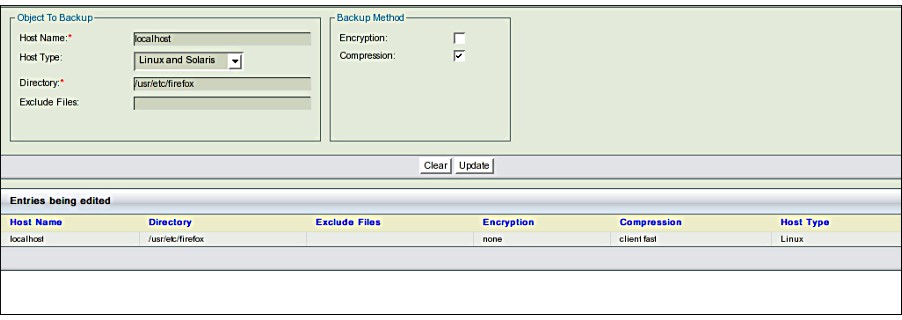
- NB:The page now displayed when Edit button is clicked, differs from the page displayed when New button is clicked in only one respect.
- The buttons at bottom right hand side are only two in number and are labeled Clear and Update respectively.
- Edit the entries as required.
- If there are errors in editing, Clear button will clear all the content and replace them with original content.
- Click Update Button to end the editing.
- Users will be taken back to the previous page, where the edited entry will be shown in its original place.
Next Steps
- To continue the process of setting up a backup set, please click the Backup Where tab.
- If you are editing only the Backup What part of an existing backup set, proceed to the Verify tab.
Links to Zmanda Knowledge Base
- When the 'localhost' alias is used in a DLE instead of the fully qualified domain name, and if IPv6 is enabled on Amanda server and Linux kernel does not have IPv6 kernel module loaded, the ZMC server configuration verification will fail with "Address family not supported by protocol" error message.
- To fix the problem, change "flags=IPv6" in /etc/xinet.d/amandaserver file to "flags=IPv4".
XXX Knowledge Base Article
- Backing up Mapped drives: Knowledge Base Article