Table of contents
No headers- 1. Click on the Report Tab to activate it.
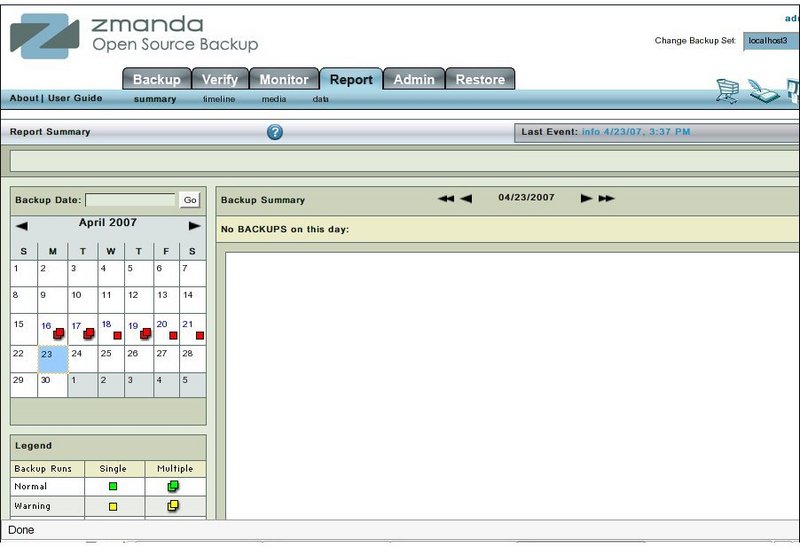
- 2. The activated Report Tab opens on the Summary sub task.
- There are three sub tasks of Report as shown below

- The data that the three sub tasks display depends on the date chosen in the Calender Control in the left panel in Fig. 1 above.
- The Summary page shows whether the Backup was error free, had warnings or had errors.
- It also shows if the warnings or errors were single or multiple.
- The Media sub task shows what Media was used and whether it was full or partial.
- The Data page shows a summary of backup in the form of a list of clients and their directories that were backed up.
- For each Disk List Entry (Host/Directory combination specified in Backup What page), it shows whether the backup was full or incremental and whether it was error free, with warnings or was with errors.